


Shovels Online remains a great way to explore permits, contractors and properties visually, with map views, filters and Charlie, our built-in AI agent. But, for teams whose analysis lives in spreadsheets, the add-on brings the same data straight into the tools they already use, so they can combine it with their own data, apply it across lists and build reports without leaving Google Sheets.
With the add-on, a single formula returns permits for an address, ZIP code, state, county ID or contractor ID directly in your sheet. You can refresh the results whenever you need current data.
From hackathon project to product
The add-on began at the Shovels fall hackathon, where Shovels engineer Grega Kešpret built a set of spreadsheet formulas that call the Shovels API directly.
After the hackathon, the leadership team selected several projects to develop further. The Sheets add-on was chosen to ship first, because it offered the shortest path from prototype to a tool customers could use right away.
It is now a public Google Workspace add-on that anyone can install, and anyone with a Shovels account can use.
What the add-on does
Once installed, Shovels-related formulas are directly available in your Google Sheets. Three primary formulas cover most use cases:
SHOVELS_PERMITS_BY_GEOreturns permits for a location: a single address, a ZIP code, a state, or a Shovels geo ID for a county or city. Optional parameters filter results by start date, end date, property type (residential, commercial, industrial) and the maximum number of rows returned, which defaults to 2,500.
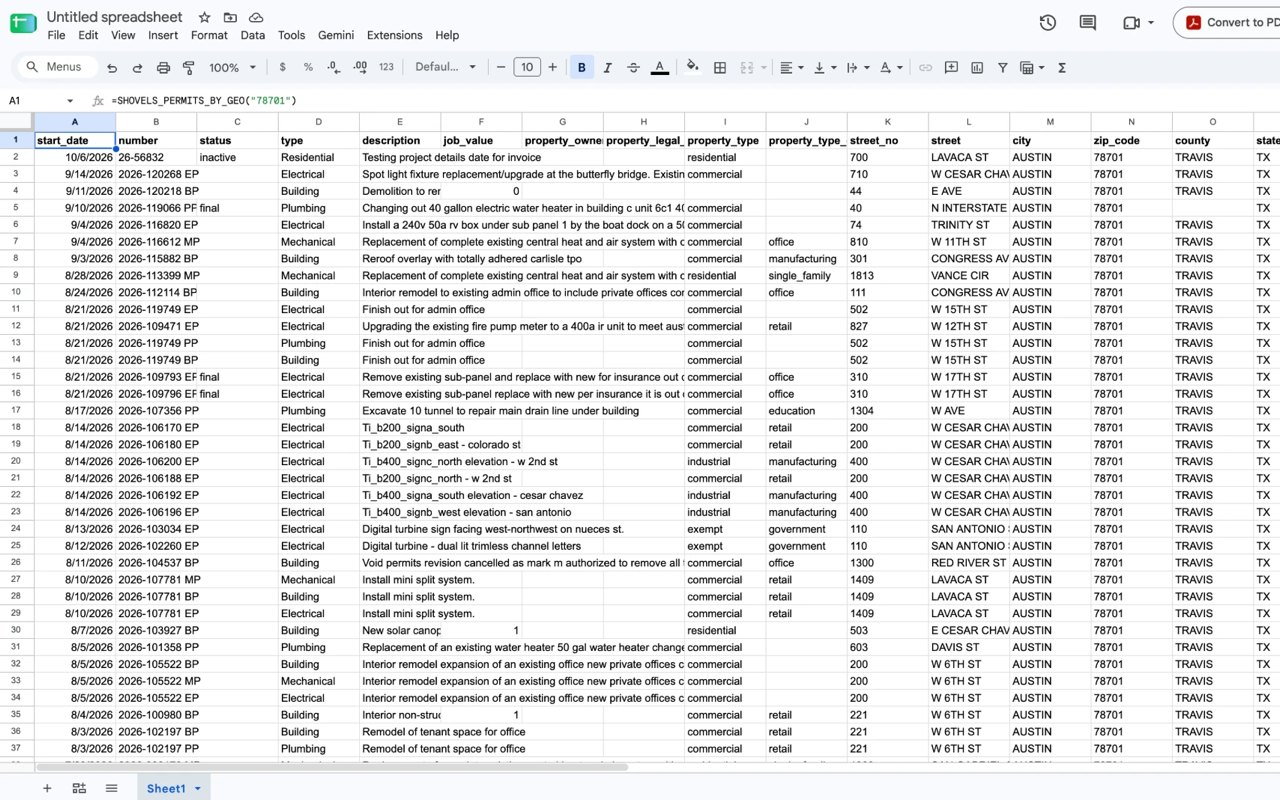 One formula returns the newest permits for a ZIP code, here 78701 in downtown Austin.
SHOVELS_PERMITS_BY_CONTRACTORreturns the permits of one contractor, by Shovels contractor ID, with the same optional filters.SHOVELS_CONTRACTORreturns a contractor's profile for a name and a state, including license, company size, contact details and permit count.
Other supporting formulas return the Shovels IDs that the primary formulas accept. One converts a contractor's name and state into a contractor ID, and others convert a county or an address into a geo ID. The contractor lookup requires a state because businesses in different states often share the same name.
To get started, you don't need to memorize any of the syntax. Just type =SHOVELS in any cell to list the available formulas. Once you pick one, built-in help describes each argument as you enter it, as it does for standard functions such as VLOOKUP.
Working with lists
Because these are standard spreadsheet formulas, you can apply them across an entire column. That makes several workflows much faster:
Enriching a contractor list. If you have a column of contractor names from a CRM export, an event attendee list or a vendor roster, you can link them to Shovels data directly. Put the names in one column and fill SHOVELS_CONTRACTOR down the next. Each row returns that contractor's license, contact details and permit count. Names match as they appear on permits, so if a name returns no match, try another spelling.
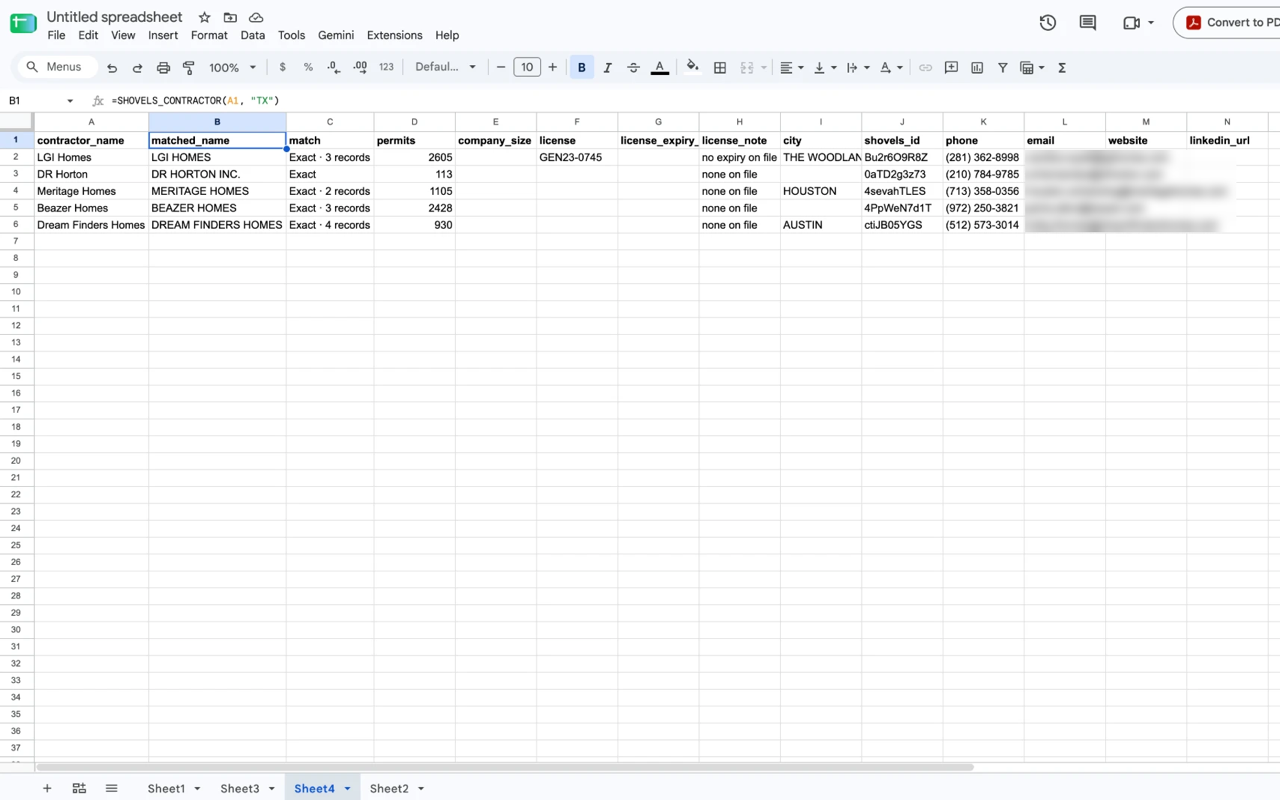 Five Texas homebuilders enriched with one formula filled down a column.
Reviewing permit history for a set of properties. Enter an address in SHOVELS_PERMITS_BY_GEO to get that property's full permit history. Each result fills several rows, so give each property its own tab or leave room below it.
Analyzing a market. Pull residential or commercial permits for a ZIP code or county over a date range, then use pivot tables, charts and filters in the same sheet. Each formula returns up to 2,500 permits by default, and each permit uses one credit.
Combining formulas. Each formula can reference the output of another cell, so you can chain them: a contractor name becomes a contractor ID, the ID returns that contractor's permits, and the permits feed into whatever analysis you need. The same works for places: a county name becomes a geo ID, and the geo ID returns that county's permits.
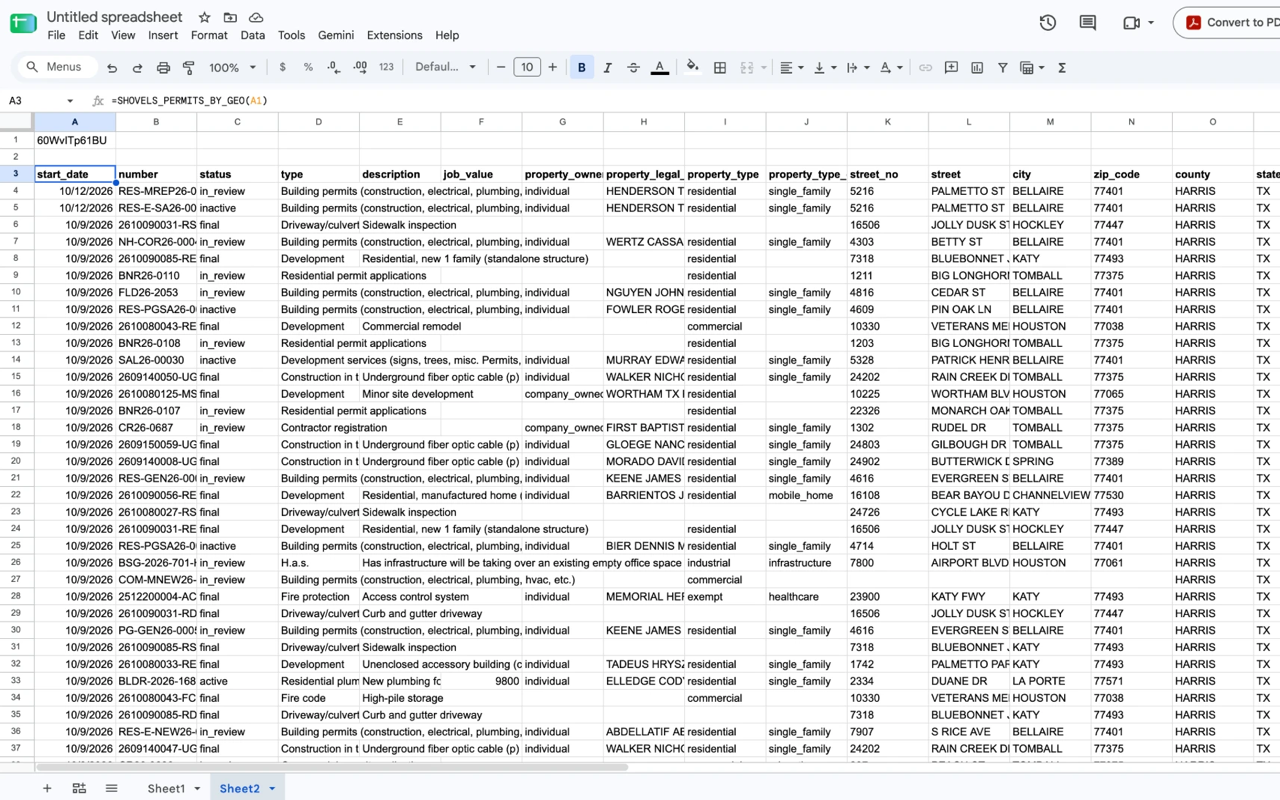 SHOVELS_COUNTY turns "Harris, TX" into a geo ID in cell A1, and SHOVELS_PERMITS_BY_GEO(A1) returns the county's permits.
How you know it’s right for you
Shovels offers several ways to access its data. Shovels Online is the browser application. The Shovels API serves developers building products. The Shovels CLI supports terminal workflows and AI agents, and bulk data shares serve organizations that want the full dataset in their own warehouse.
The Google Sheets add-on is built for people whose work happens mainly in spreadsheets: analysts preparing market reports, sales and marketing teams managing lead lists, and researchers who want permit data next to their own data without writing code.
Teams calling the API from code or building agent workflows will find the CLI a better fit. Organizations that need the complete dataset can contact us about a data license.
Getting started
- Install Shovels from the Google Workspace Marketplace.
- Approve permissions. When you install the add-on, Google asks you to authorize it. It needs permission to connect to the Shovels API, to write results into your spreadsheet, to show its dialogs, and to fetch results when anyone edits the sheet.
- Copy your API key from your Shovels account at app.shovels.ai. If you don't have an account, you can create one for free.
- Enter your key under Extensions → Shovels → Set API key. The key is saved in that spreadsheet.
- Type
=SHOVELSin any cell and choose a formula.
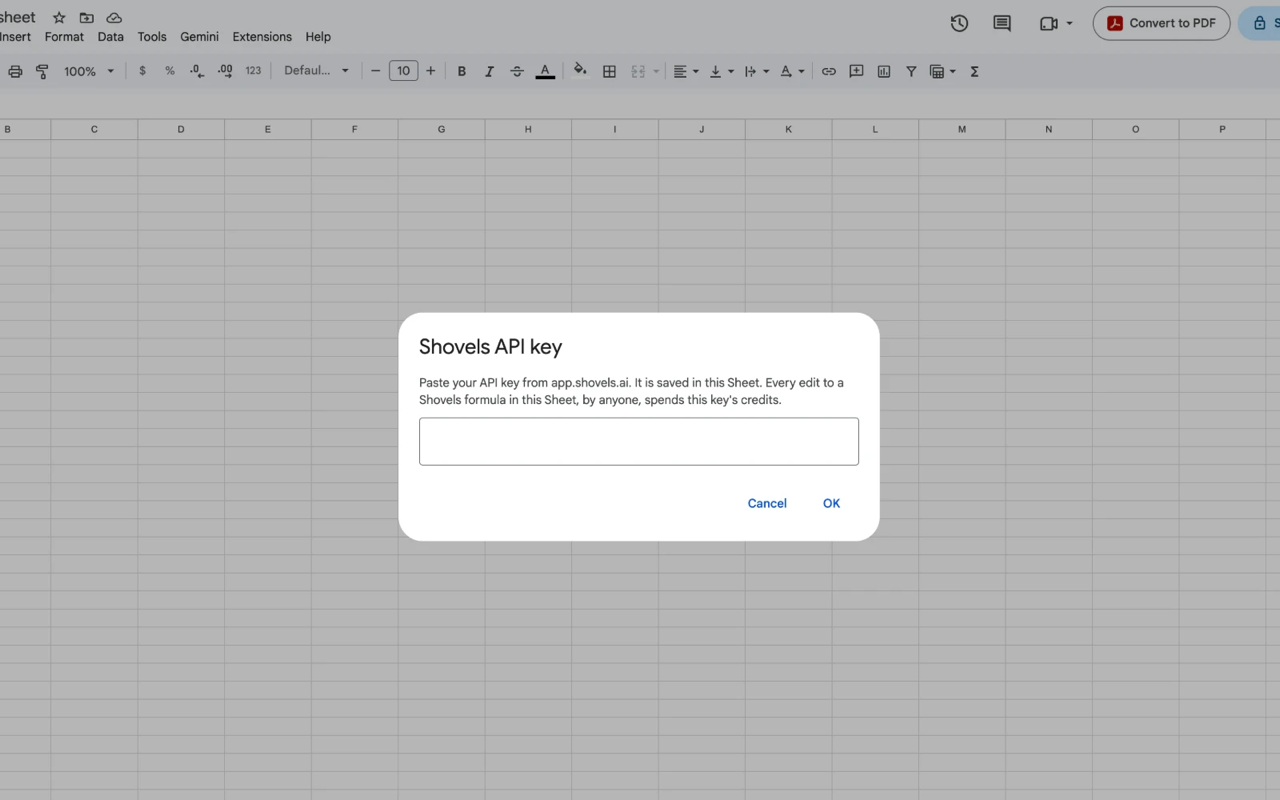 Paste your API key once per spreadsheet.
Note on dates: enter dates as text in quotation marks, for example "2025-08-24", or point to a cell that holds a date. A date typed without quotation marks becomes a number in Google Sheets, and the formula returns an error.
Credits, caching and refreshing
The add-on uses the same API credits as any other Shovels API request, at one credit per record returned. Looking up a county or an address is free. Every Shovels plan includes API access, and credits replenish monthly. See pricing for plan details.
To prevent unintended credit use, results are cached in the spreadsheet. Reopening a sheet does not trigger new API requests. To update results, select Extensions → Shovels → Refresh all formulas. Every formula in the sheet re-runs against current Shovels data, and that refresh uses credits. Extensions → Shovels → Show credits used shows the credits your key has used this month. If a cell keeps showing "Shovels: fetching…", select Extensions → Shovels → Fetch waiting formulas.
Sharing a sheet: your API key is saved in the spreadsheet, so anyone who edits a Shovels formula in a shared sheet uses your credits. Share sheets that hold your key only with people who may use them.
What's next
We launched the add-on to make workflows easier for our customers. These first few formulas answer the questions customers ask most often: which permits were filed in a location, which permits a contractor holds, and who a contractor is. Anything else we add will be shaped by how customers use it.
If your workflow needs something the add-on doesn't support yet, let us know. For setup steps and every formula, see the Shovels for Google Sheets quickstart.
Frequently Asked Questions
- What is the Shovels add-on for Google Sheets?
-
It is a Google Workspace add-on that brings Shovels building permit and contractor data into Google Sheets through formulas such as
SHOVELS_PERMITS_BY_GEO, without CSV exports or imports. - Do I need a paid plan?
-
No. Every Shovels plan includes API access, including the free tier. Formulas use API credits from your plan.
- Does the data update automatically?
-
No. Results are cached so that opening a sheet does not use credits. Select Refresh all formulas from the Shovels menu to retrieve current data.
- What can I search by?
-
You can pull permits by address, ZIP code, county, state or Shovels geo ID, or by contractor. Optional filters narrow results by date range and property type.
- Can I use my API key in more than one sheet?
-
Yes. One Google user can set a key in up to 20 spreadsheets. To free one up, open a sheet you no longer use and select Extensions → Shovels → Remove API key.
- Does it work in Excel?
-
Not at this time. The add-on is available for Google Sheets.
Ready to get started? Install Shovels from the Google Workspace Marketplace, and create a free Shovels account to get your API key. Or, if you need a custom solution, contact sales about data licenses and warehouse shares.